26K DPI Superlight Tri-Mode Mouse + Grip Tape Guide
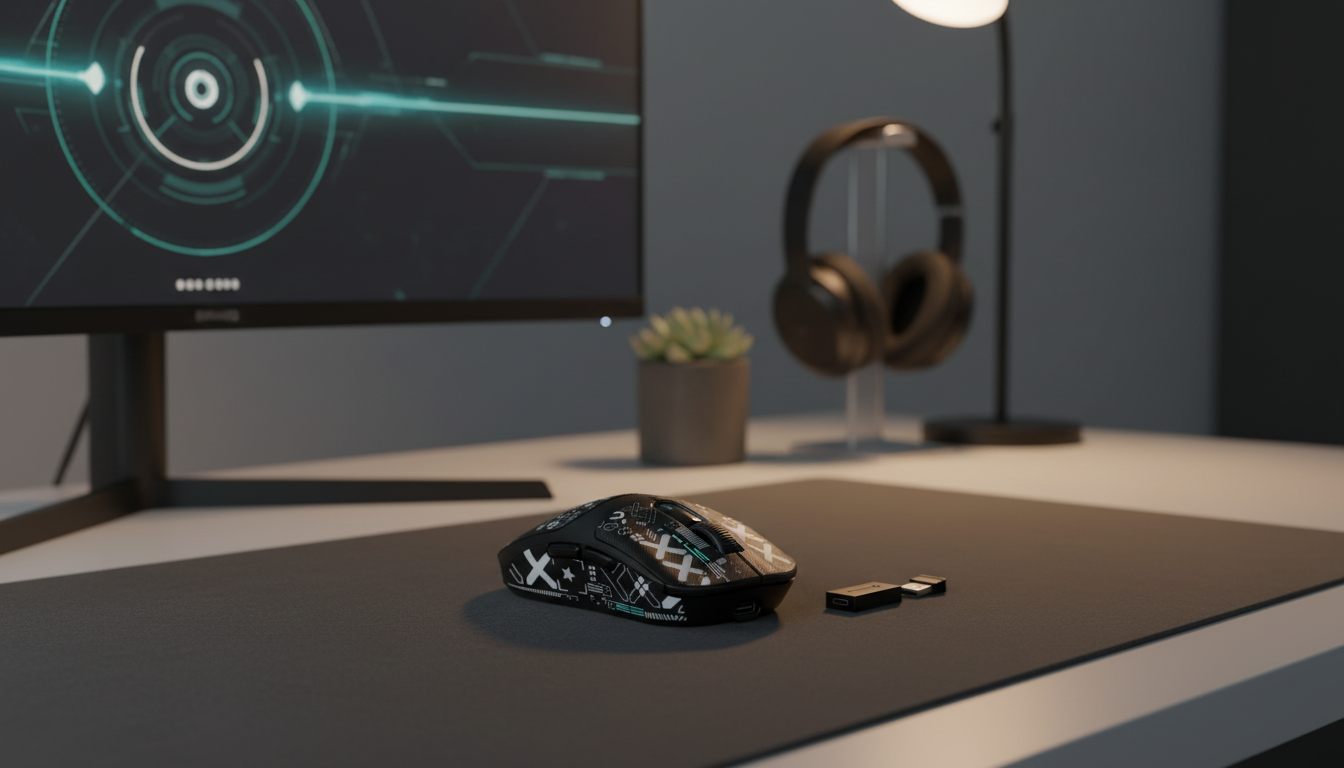
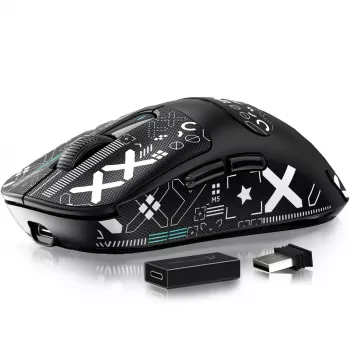
Superlight Tri-Mode Wireless Gaming Mouse with 26K DPI & Grip Tape
Fast aim, clean tracking, and a secure hold matter most when every flick and micro-adjustment counts. The Superlight Tri-Mode Wireless Gaming Mouse with 26K DPI & Grip Tape pairs a high-end sensitivity range with flexible connectivity, so it can move from tournament-style play to daily laptop use without changing your routine. Add the included grip tape, and you get a steadier feel during warm hands, quick lift-offs, and repeated resets—exactly where consistency tends to break down.
What makes this mouse stand out
- Superlight build that helps reduce fatigue over long sessions while making small corrections feel quicker and easier to stop precisely.
- Tri-mode connectivity so you can choose low-latency wireless for matches, Bluetooth for travel, or wired USB when charging.
- 26K DPI-class sensor range for a wide sensitivity window—useful for everything from slow tactical aim to fast desktop navigation.
- Grip tape included to improve control during intense play, especially when your fingers start to slip.
- Built for common competitive genres where predictable tracking and stable clicks matter: FPS, MOBA, battle royale, and arena shooters.
Tri-mode connectivity: when to use each option
Different setups call for different connections. The advantage of tri-mode is simple: you don’t have to compromise. Pick the mode that fits the moment, then keep playing.
Connection Modes at a Glance
| Mode | Best for | Trade-offs | Quick setup note |
|---|---|---|---|
| 2.4G Wireless | Ranked matches, FPS/MOBA | Needs receiver; potential interference if far away | Use a nearby USB port or extender |
| Bluetooth | Laptop use, travel, multi-device | Usually higher latency than 2.4G | Pair in OS Bluetooth settings |
| Wired USB | Charging + uninterrupted play | Cable drag unless managed | Use a bungee or route cable cleanly |
- 2.4G wireless: Typically the best option for competitive gaming thanks to stable, low-latency performance. If your mouse includes a receiver/dongle, treat it like part of your performance kit.
- Bluetooth: Great for casual sessions, work, and travel. Pairing is straightforward, and it plays nicely with many laptops and tablets. For an overview of how Bluetooth devices interoperate, see the Bluetooth Core Specification (Overview).
- Wired USB: The “no interruptions” option—especially while charging or in spaces that restrict wireless. Manage the cable to minimize drag and keep your swipe feeling consistent.
- Switching modes: A practical approach is to keep separate device profiles—gaming PC on 2.4G and laptop on Bluetooth—so you don’t have to re-pair every time you move rooms.
- Receiver placement tip: Keep the 2.4G receiver close to the mouse (front USB port or an extension). USB 3.0 devices can create interference in the 2.4 GHz band; the USB-IF provides helpful background in USB 3.0 Radio Frequency Interference on 2.4 GHz Devices.
26K DPI sensor and real-world control
A 26K DPI-class sensor is less about permanently playing at an extreme setting and more about having room to tune. What most players feel day-to-day is consistent tracking, stable lift-off behavior, and predictable response across both slow aim and fast flicks.
- DPI range: A higher ceiling provides flexibility for high-resolution monitors and fast cursor movement, while still supporting traditional competitive settings.
- Recommended starting points: Many FPS players land around 800–1600 DPI, then adjust in-game sensitivity to match their preferred cm/360. Higher DPI can also feel smoother on 1440p/4K desktops for general use.
- Polling rate and responsiveness: Use the highest stable option supported for competitive play. If you’re prioritizing battery life during travel, lowering the polling rate can help.
- Surface pairing: A quality mousepad improves consistency. Very glossy or reflective desks can introduce jitter or odd micro-stutters.
- Calibration tip: Test both slow pixel-level tracking and full-speed swipes. If you notice spin-outs, adjust the surface, clean the sensor area, or change settings until fast flicks remain stable.
For a deeper look at overall system responsiveness beyond the mouse itself, NVIDIA’s overview on latency is a useful reference: NVIDIA Reflex: System Latency and How to Reduce It.
Superlight handling and why grip tape helps
Weight is one of the quickest ways to change how a mouse “drives.” A lighter body can make repeated swipes easier to start and stop, while a grippier shell helps you reproduce the same movement under pressure.
Battery, charging, and daily reliability
Setup checklist for consistent performance
Who this mouse fits best
Also in stock
- Superlight Tri-Mode Wireless Gaming Mouse with 26K DPI & Grip Tape
- 3-Level Modern Cat Tree with Scratching Pad, Cushions, Condo and Toy
- Golf Cart Bag with 14-Way Divider
FAQ
Does 26K DPI make aiming better?
Not automatically. A higher max DPI mainly gives you a wider range to tune; real aiming improvement comes from consistent sensor tracking, stable settings, and a DPI/sensitivity combination that matches your control (often around 800–1600 DPI for many FPS players).
Which connection mode is best for competitive gaming?
2.4G wireless is usually the best pick for low latency and consistent performance. Wired USB is a solid backup while charging, while Bluetooth tends to be better suited for casual play and everyday laptop use.
How should grip tape be applied and cared for?
Apply it to the main contact points (thumb side and the opposite finger anchor), starting with clean, dry hands and a wiped-down shell, then press firmly along the edges. To care for it, wipe gently with a slightly damp cloth and avoid harsh cleaners that can weaken the adhesive.









Leave a comment